About Apple Support Communities - Apple Club |
Back to: 
Tweet

Apple Support Communities is a user-to-user discussion forum hosted by Apple. This article will tell you all about Apple Support Communities (ASC), and you can get to the discussions by the web address provided below. As a reminder, the Apple Club has no affiliation with Apple. You can ask questions on our own forums here, and view topics here. Now on to Apple's forums:
Corresponding Apple Service: (will take you to Apple Support Communities)
What is Apple Support Communities?
Apple Support Communities, previously Apple Discussions, is a technical support forum in which Apple product users can get help from other users. Apple does not post here, nor do they read through the threads. There are some people, known as Community Hosts, who will monitor threads to make sure all posts are polite and do not violate the terms of use, but Apple does not actually read through the posts. Some people believe they are addressing Apple when they post, but they are actually just addressing other users.
Apple Involvement
There are some Apple employees, "Community Specialists," who will help provide support alongside other volunteer users. They only respond if a question goes unanswered for 24 hours, and will not respond to rants, feedback, etc. - only technical support questions. They will only respond with a link to an Apple support article, often quoting relevant segments of the article.
The only other participants from Apple are the "hosts," the moderators. They seldom post, though sometimes they respond to questions in the "Using Apple Support Communities" forum. If you need to get ahold of them, you can email communityhosts@apple.com. If you want to bring a post to the hosts' attention, and are a Level 2 or higher user, it would be better to use the "Report Post" link which appears at the bottom right of every reply. If you want to report a thread that has no replies, go to "Actions" (the gear icon near the upper right of the page) and click Report Post. Again, this capability is only available to Level 2+ members, and if anyone else needs the hosts' attention, they can use the email above. The moderators are mostly there to remove posts that violate the Terms of Use (linked later on in this article), or that others report as offensive.
Since the only participation from Apple is the forum staff, posting on Apple Support Communities is not the best way to communicate feedback to Apple. There have been reports that posters have been contacted by Apple engineers after posting on the forums, but this is unofficial and an atypical experience. Feedback should be directed to http://apple.com/feedback.
Everything you Need to Know about an ASC Account
On Apple's forums, you can both ask and answer questions. If you are knowledgeable on the subject of Apple products and like to help out, or are very confused and could use some help, Apple Support Communities is perfect for you.
This portion of the article will cover creating an account, asking and answering questions, guidelines for posting and reputation points.
Creating an Account

When accessing the site as a guest, you can view existing threads to see if your question has been answered in another thread. However, you cannot post any content without creating an account. This can be done by clicking on Sign In, and using an Apple ID. If you do not already have an Apple ID, this article will help you set one up.
Corresponding Apple Club Article: (will take you to the Apple Club's Advice and Articles page)
After you enter a valid Apple ID, you can proceed to creating you account. You will need to enter in a username, then agree to the Apple Support Communities terms of use. After this, you are ready to go. Once you choose your username and finalize your account, the username cannot be changed. You would have to contact the moderators to change it, but they typically will not do this unless personal information was included in the name.
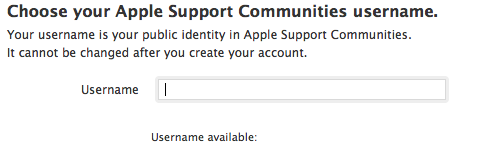
Usernames cannot include:
- Bad language
- Email addresses
- Website URLs
If you are experiencing an issue with your account, you should send an email to communityaccounts@apple.com.
Asking and Answering Questions
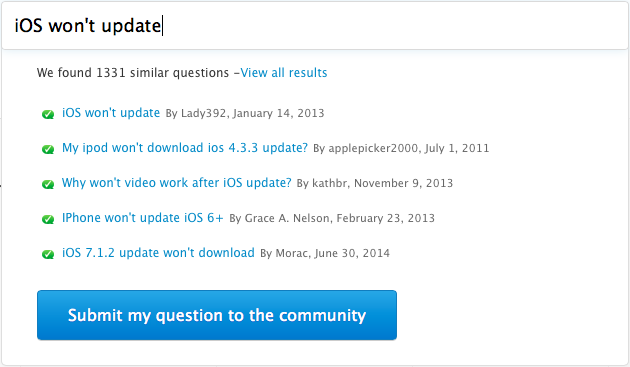
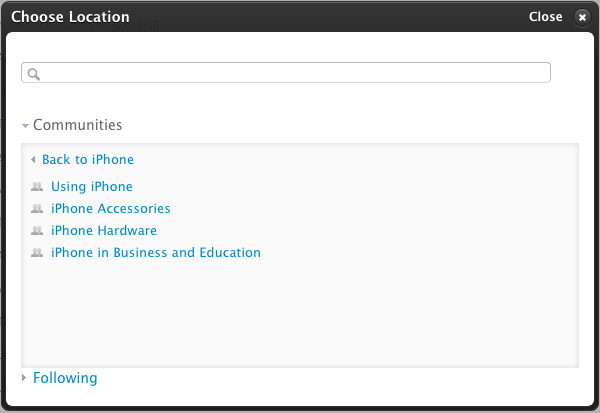
You will need to pick a community that you think will best address your question. This will help people narrow down their search when they are looking for questions to answer. For example, if your question was posted in the MacBook Pro community, you would have a better chance of a MacBook Pro expert stumbling upon your question.
When asked to select a community, they are listed in alphabetical order. Some users are unsure about which community is relevant to their question. One tip would be to look for the lines with grayed out text. This means that the community houses sub-communities, and you cannot post to the "parent" community. However, there is a blue link to show the sub-communities. For example, if you had a question about your iPhone, find the "iPhone" parent community, and look at the sub-communities to find the best one for your question, as shown in the above screenshot. You may need to scroll down to find the appropriate community. Some users just post in a community because it is near the top of the list. For example, the AppleWorks forum, which is for a discontinued productivity software suite from Apple, tends to attract a lot of miscellaneous posts.
Now, what if you want to answer someone's question?
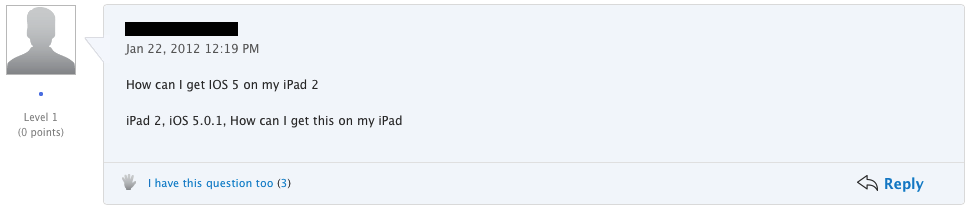
To answer a question, click on the Reply link in the lower right of the post. Then you can enter your reply and press the blue "Reply" button. Note that users can only post up to once every 30 seconds. When someone else replies to the thread, you will have a notification sent to your email (the email associated with your Apple ID) if you have opted in to email notifications.
 You can click on this icon while posting to add an image to the post. Some users find it helpful to post screenshots of menus or displays.
Guidelines for Posting
Before posting, there are some things to consider. These are fully outlined in the Apple Support Communities Terms of Use, which is linked later on, but these points will be summarized here. ASC is big on politeness. Make sure your post is not hurtful towards the original poster (OP) or towards another answerer. Also, ASC is a user to user technical support forum. That being said, it is not the appropriate place for ranting, polls/petitions, rumors, off topic posts, or otherwise non-constructive posts. The ASC community hosts do their level best to keep the forum a clean and pleasant place to be. Also, before posting an answer, if you are not sure of what you say, it is a good idea to test it out yourself or research the answer to make sure you do not provide false information. But the bottom line is, be respectful and stay on topic. If you do not, don't be surprised if your posts is removed. Continued ranting or rudeness will mean that your user will be banned from using Apple Support Communities, either temporarily or permanently.You may also see "<Edited by Host>" at the bottom of a post if there was a portion of the post that was inappropriate, but did not warrant deletion. Any time a moderator has to edit a post, even to remove an email address or serial number, the above will appear at the end of the post. Also, if your post gets completely removed, you should receive an email shortly with an explanation. If your post is removed and you do not receive an email, the most likely scenario is that someone else's post was removed, and they removed your post along with it.
In addition, there are some things that should not be included in posts:
- Email addresses
- Serial Numbers/IMEI/Other personal information about you or a device
- Swearing (although this will automatically be removed, and replaced with "****")
- Advertising
- You may post links, but make sure they relate to the topic
- You may post a "signature," but make sure it is not too large and does not contain a link
Corresponding Apple Information: (will take you to Apple Support Communities)
If you are a Level 2 or higher user, you can report posts that violate the Terms of Use linked above. If you want to report a particular reply to a thread, the report link is right above the Reply button. If you want to report the original post or the thread as a whole, click the "Actions" menu (gear icon) near the top right of the page, and then click Report Post. If you need to get in touch with the moderators and are not yet a Level 2, or need to contact them for another reason, email communityhosts@apple.com.
Trusting Advice from Community Members
The advice given by forum members can usually be trusted, especially if the member giving advice has accrued a high status level (discussed below). Some high-level members like to compete and persuade posters to favor their solution over another. A good read on the subject is this ASC User Tip: https://discussions.apple.com/docs/DOC-8181.
Reputation Points and Status Level
 These options will appear for the person who asked the question.
If you are the original poster and would like to award points, these options will appear underneath each post, and you would click on either the yellow star or green bubble to award the appropriate points. These options will only appear if you marked the original post as a question (which is selected by default when creating a thread). If you unchecked this box, it is marked as a discussion and you may not award points. Note that once you mark a post as Helpful or Solved, it cannot be undone.
If your answer is marked, you will earn points. A "Helpful" mark next to your reply means that you have earned 5 points. A "Solved" mark next to your reply means that you have earned 10 points. After reaching certain milestones, your status level will increase. These are called "reputation points" because people of high levels are respected and trusted because they have helped out so many people. This is not to say that people with 0 points can't help you, everyone has to start somewhere  . If you have asked a question and someone has answered it, the best way to thank them is to award them points, which can be done by clicking on either of the buttons as pictured above. Also, by marking an answer as correct, it will let others know that the question has been answered, so that they can move on to other threads in their search.
Some users try to award points to themselves. First of all, marking your OWN reply as Helpful or Correct will not earn you any points, and is rejected by the system. It will still be marked as helpful or correct, but will not earn you any points. If someone sees the answer marked as correct, they may think the question has been answered and move on, so you may not get the help you need. Please do not mark your own reply, unless you actually did solve your own question, in which case it may help others with a similar issue find a solution. Another trick is for people to create multiple profiles and have them award points to each other. This is known as "gaming" the points system, and is a great way to get your user account(s) banned from the communities.
Some users try to award points to themselves. First of all, marking your OWN reply as Helpful or Correct will not earn you any points, and is rejected by the system. It will still be marked as helpful or correct, but will not earn you any points. If someone sees the answer marked as correct, they may think the question has been answered and move on, so you may not get the help you need. Please do not mark your own reply, unless you actually did solve your own question, in which case it may help others with a similar issue find a solution. Another trick is for people to create multiple profiles and have them award points to each other. This is known as "gaming" the points system, and is a great way to get your user account(s) banned from the communities.
When you attain certain amounts of points, your status level will increase. In addition to showing off how experienced you are, you also receive addition privileges in the communities. Below is a list of point milestones, status levels, and some of the privileges you can get. More information can be found at https://discussions.apple.com/static/apple/tutorial/reputation.html.
| Level | Points Needed | Privilege |
| 1 | 0 | Ask and Answer |
| 2 | 150 | Report Posts |
| 3 | 500 | Choose a custom profile picture |
| 4 | 1,000 | Get invited to MVP conference calls |
| 5 | 4,000 | Write User Tips |
| 6 | 8,000 | Access to the "Lounge," ASC T-Shirt, participate in meet-ups |
| 7 | 20,000 | Apple logo pen, mug or keychain |
| 8 | 35,000 | " " |
| 9 | 50,000 | " " |
| 10 | 80,000 | " " |
Note that points do not allow you to buy anything or get any free products, they simply allow you to get additional privileges in the forums.
Awards and Specialty Levels
In addition to the reputation level, there is also a "specialty level" system. You will have a different specialty level for each different forum on the site (i.e. iPhone, OS X, iTunes). You gain specialty levels by completing various tasks, such as bookmarking a thread, reporting a post, making a User Tip, or having other members react to your posts. Once you start to complete one of the level 1 requirements, the icon for that forum's specialty will appear on your profile. The specialty area for which you have attained the highest level will appear below your profile picture. To learn more about the requirements for each specialty level (there are ten; they are the same for each forum), see this ASC User Tip: https://discussions.apple.com/docs/DOC-9691.
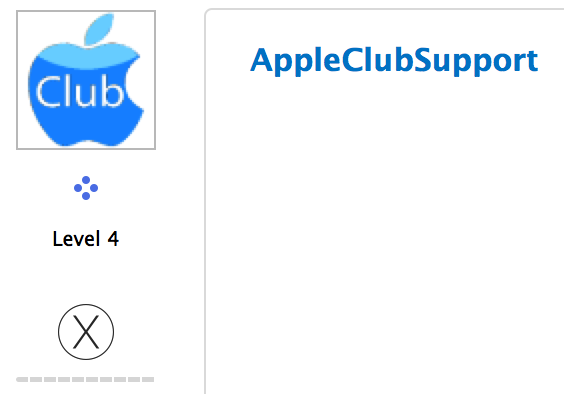
Similarly, you can also earn awards by completing various tasks, such as reading a User Tip or tutorial. To see someone's awards, click on their username or their profile picture, and the pop-out window will show their awards (as well as all of their specialties).
Finding Threads
There are a few ways to find existing questions. If you have a question of your own and want to search for similar questions in the community before posting, you can create a question title on the Welcome page as mentioned earlier, and click on one of the results from there.
The main way to access threads, however, are using the "Activity" or "Content" views, which you will find links for at the top right of every page. Clicking Activity will take you to Activity Stream.
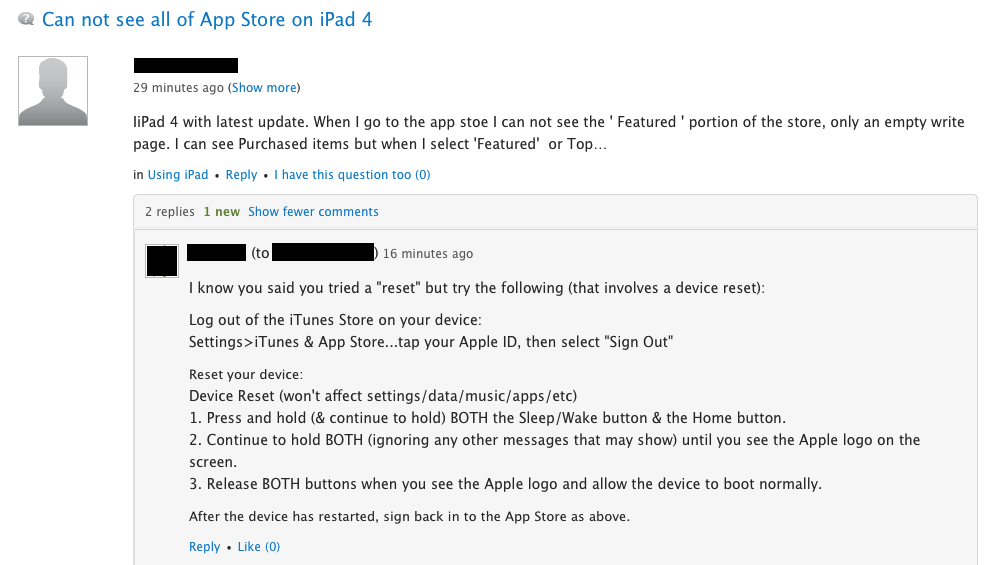
Click to enlarge
By default, it will show threads that you are involved in. To show all threads, remove everything in the URL after the word "activity" ("?streamSource=connections"). The difference between Activity Stream and the content view is that you can see replies right from that view, and even compose a new reply to a thread without ever leaving the Activity page. The Content view lets you see threads in chronological order starting with the most recent. Individual communities also have their own content view, showing threads specific to that community, for example https://discussions.apple.com/community/iphone/using_iphone/content. There is a sidebar on the left which lets you further narrow down questions by category. If you are on the main Content page, you can use the sidebar to find your own content. "Authored" will show threads that you have started. "Participated" will show both threads and replies that you have created. You can also get to your personal content by clicking on "Welcome, [your name]" near the top left of every page, then clicking on where your username appears in blue (beneath your picture), then clicking "Content" or "Activity" from the tabs across the top of the screen after your profile page loads.
Managing Email Notifications
When you go to a thread, you should see the following near the upper right of the page:
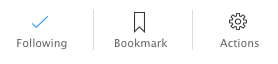
If you want to stop all emails from Apple Support Communities, the first step is to click the Following button on threads you have been involved in, assuming that is not too many. The next step is to go to Activity Stream (as a reminder, click "Activity" near the top right of any page), and locate this switch near the upper right of the page:

Turn it off. Finally, click "Welcome, [your name]," and then click "Preferences" in blue. Turn off items relevant to email notifications. This should stop all emails coming from Apple Support Communities.
Summary
In summary, if you have a question that you need answered, or if you would like to share your Apple expertise with the world, pay a visit to Apple Support Communities!
| Back: |
Ask: |
Rate:
 |
Share: |
Print: |
Article ID: AA1010
|
Previous Article |
Next Article |
|
A Browser Pop-up Scam has Taken Over Safari |
Adjusting to iTunes 12 |
Overall User Rating: [NO RATINGS]
