Adjusting to iTunes 12 - Apple Club |
Back to: 
Tweet

If you recently upgraded to OS X Yosemite, or updated to iTunes 12 in OS X Lion or later or in Windows, this article will explain how to do some of the tasks you were used to doing in iTunes 11 or earlier, as the procedure for some of these has changed.
Sidebar
In iTunes 10 and earlier, there was always a left sidebar present to help users navigate between different types of media and playlists. In iTunes 11, users could enable the sidebar by going to the View menu and selecting "Show Sidebar." But iTunes 12 users may notice that there seems to be no way to enable the sidebar in iTunes 12.
The sidebar is still available, but only in the "Playlists" view. It will also appear when you connect an iOS device to help you navigate between the content on that device. It may appear in other menus when you are moving files by drag and drop.
In the upper left of the iTunes window, you will see icons representing the various types of content, i.e. music, TV shows and movies, with a drop-down menu for other content:
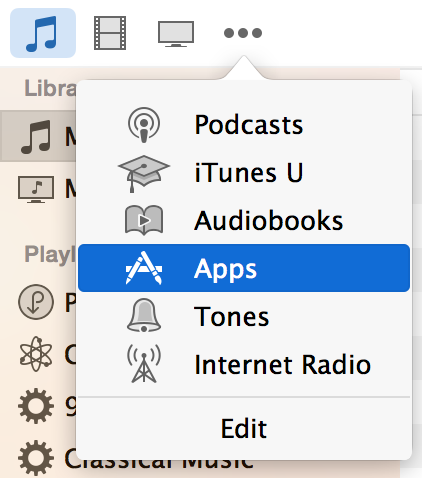
After you've selected a content type, depending on your selection, you should see these options in the upper middle of the screen:

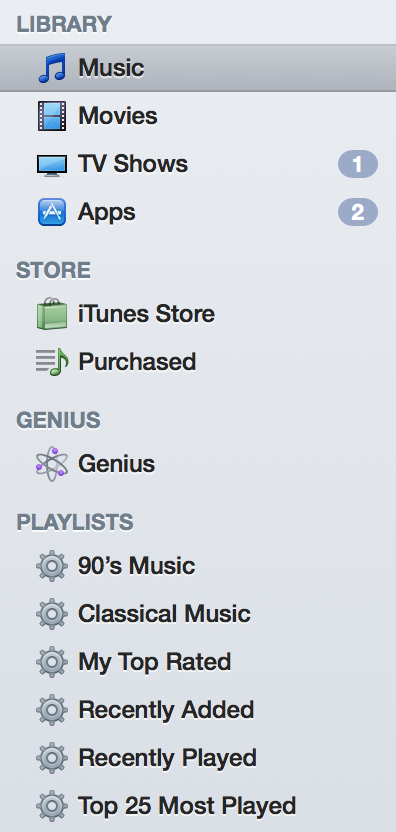
After selecting "Playlists," you should see the sidebar. The sidebar is not quite as functional as it was in earlier versions of iTunes, as it does not let you switch between different types of media in your iTunes library.
 |
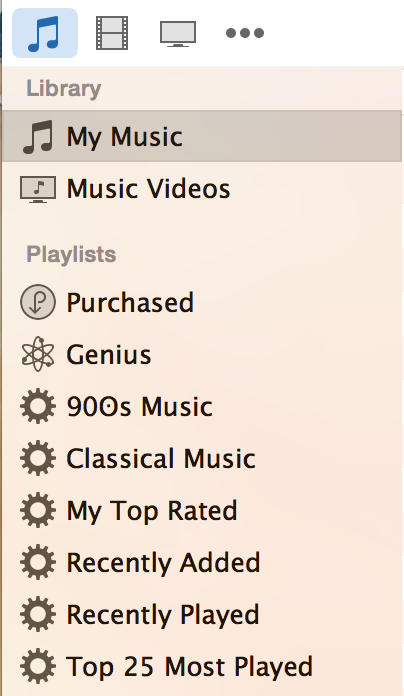 |
| iTunes 11 sidebar | iTunes 12 sidebar |
You may be used to telling iTunes to repeat all songs in a list, or repeat a particular song, by clicking the repeat icon in the center of iTunes' menu bar, as shown below:

(see the gray rectangular icon with the "1")
This icon will not appear by default in iTunes 12. You will need to, with the iTunes window open, go to the "Controls" menu in the OS X menu bar, select Repeat, and choose the desired option. Then the icon will appear, as shown above. Again, that's Controls > Repeat > One (or All).
Accessing Your Account
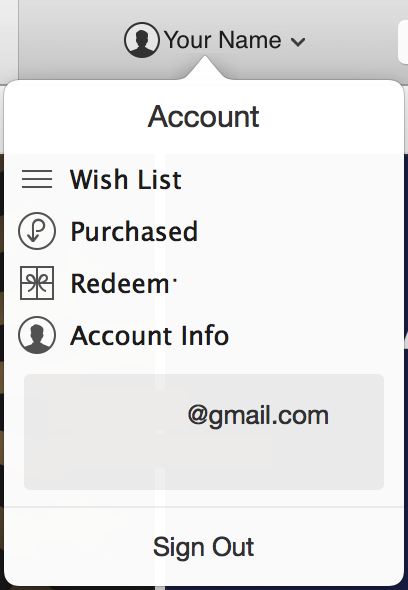
If you want to access your iTunes account information, such as billing information or authorized devices, you can do that two ways:
- The way you are probably used to: going to the iTunes Store menu, and clicking "Account" from "Quick Links"
- Where it says "My Music," "Playlists," etc. in the top middle, the rightmost option is iTunes Store; Quick Links is on the right.
- The new Account menu on the right-hand side of iTunes' menu bar
-
In iTunes 11, you were probably used to switching to the mini player by clicking this icon next to the full screen icon, in the very upper right of the iTunes window:  .
.
.Now, in iTunes 12, the mini player is accessed by hovering your mouse over the album artwork in the center of iTunes' menu bar, and clicking on the icon that appears:
The icon is always present if there is no album artwork: 
This is what the mini player looks like in iTunes 12:

Click on the "X" in the upper left to switch back to the regular iTunes window. Click on the up arrow below the "X" to hide the album artwork in the mini player.
| Back: |
Ask: |
Rate:
 |
Share: |
Print: |
Article ID: AE2332
|
Previous Article |
Next Article |
|
About Apple Support Communities |
AirPlay: iOS and Mac |
Overall User Rating: [1 RATING]
