AirPlay: iOS and Mac - Apple Club |

Tweet

This article will explain how to use AirPlay on an iPod touch, iPhone, iPad or Mac computer.
- iOS device with iOS 4.2 or later
- iTunes 10.2 or later on a Mac or PC
- iPhone 4S or later
- iPad 2 with iOS 5.0 or later, iPad (3rd or 4th generation), iPad Air, iPad mini, iPad Pro
- iPod touch (5th generation) or later
- Mid-2011 or later MacBook Air, Mac mini or iMac running OS X Mountain Lion (10.8) or later
- Early-2011 or later MacBook Pro running OS X Mountain Lion (10.8) or later

Double tap the home button. A list of recently opened apps will appear at the bottom of the screen. Slide this portion of the screen from left to right. On an iPad, you should see the AirPlay button if it is available. On an iPhone, you will need to swipe from left to right twice. Swiping once will reveal music controls. Swiping again will reveal volume controls, and also AirPlay, if available.
 After double tapping the home button, swipe to the right twice to see AirPlay.
 On the iPad, just swipe once.
Then, tap the AirPlay button and select the Apple TV or desired device from the list. Under the Apple TV, be sure to turn the toggle switch for Mirroring ON.
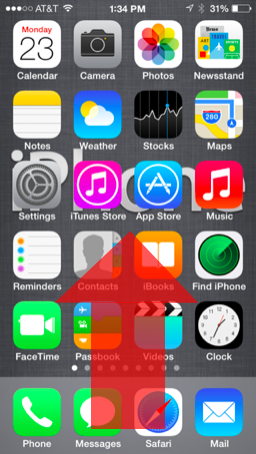
Swipe from bottom to top on the screen to reveal Control Center (if you do not see it, go to Settings > Control Center and make sure it is on).
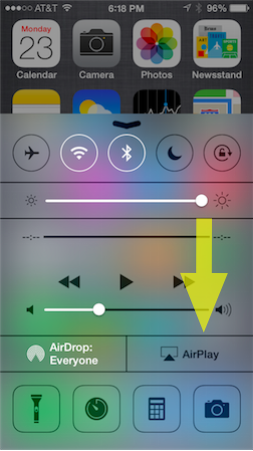
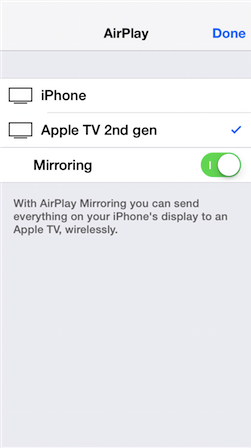
AirPlay can be found below the music controls, to the right of AirDrop. It will not appear if AirPlay is not available. Tap on the AirPlay menu for a list of devices available to mirror to. After you select a device, be sure to turn the Mirroring switch ON.
On a Mac, the AirPlay icon will appear next to the play/pause controls if using iTunes, or in the menu bar if using mirroring. Be sure that the box to "Show mirroring options in the menu bar when available" is checked under the Display menu of System Preferences.

AirPlay Does Not Appear
AirPlay requires a Wi-Fi connection, so an iPhone or iPad on 3G or LTE will not work if it doesn't have a Wi-Fi connection. Also verify that all devices (Apple TV and the device you wish to mirror) are on the same Wi-Fi network. Also check on the Apple TV under Settings > AirPlay and make sure it is on. For Macs, again, check under System Preferences > Displays > Show mirroring options in the menu bar when available. If all settings appear correct, try the following:
- Reboot the Apple TV
- Reboot the iOS device or Mac
- Go to Settings > General > Reset > Reset Network Settings (for iOS devices)
- Go to Settings > Wi-Fi ("Settings > Network" for Apple TV), select the network and then click Forget. Then re-join it
- Reset your router
| Back: |
Ask: |
Rate:
 |
Share: |
Print: |
|
Previous Article |
Next Article |
|
Adjusting to iTunes 12 |
AirPort Utility: AirPort Device not Found with |
