AirPrint on iOS - Apple Club |
Back to: 
Sections in this article: Does my Printer Work with AirPrint?, How do I use AirPrint?,
Tweet

This article will explain how to use AirPrint, as well as how to print if your printer is not compatible with AirPrint.
Apple has a complete list of compatible printers in one of their knowledge base articles, linked below.
Corresponding Apple Article: (will take you to Apple's website)
There is nothing that needs to be downloaded to use AirPrint, as it is a built-in feature on iOS 4.2 and later. There are certain apps, both built in and available for download, on the App Store which are able to print using this feature. Some examples would be the Photos, Safari or Mail app (built in), or downloadable apps like Apple's iWork apps (Keynote, Numbers and Pages; available for download at $9.99 each), or Apple's iBooks (available for download, free). Most apps' print menus can be found by tapping the share button.

From that menu, there should be a "Print" option. Below is an example in Apple's Pages.

Then you would select Share and Print.
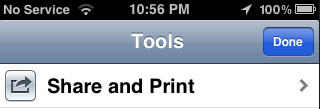
Finally, tap on Print.
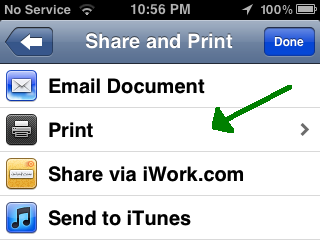
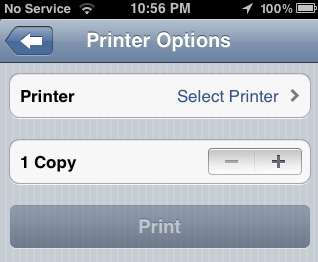
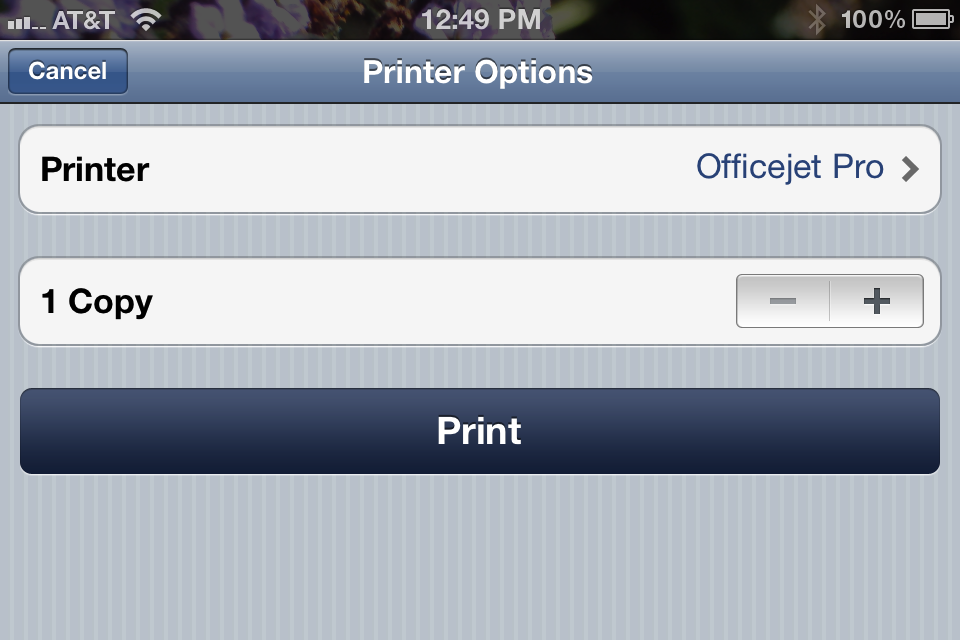
You then can select which printer and how many copies will be made.
Here is another example, in the Photos app.
1)

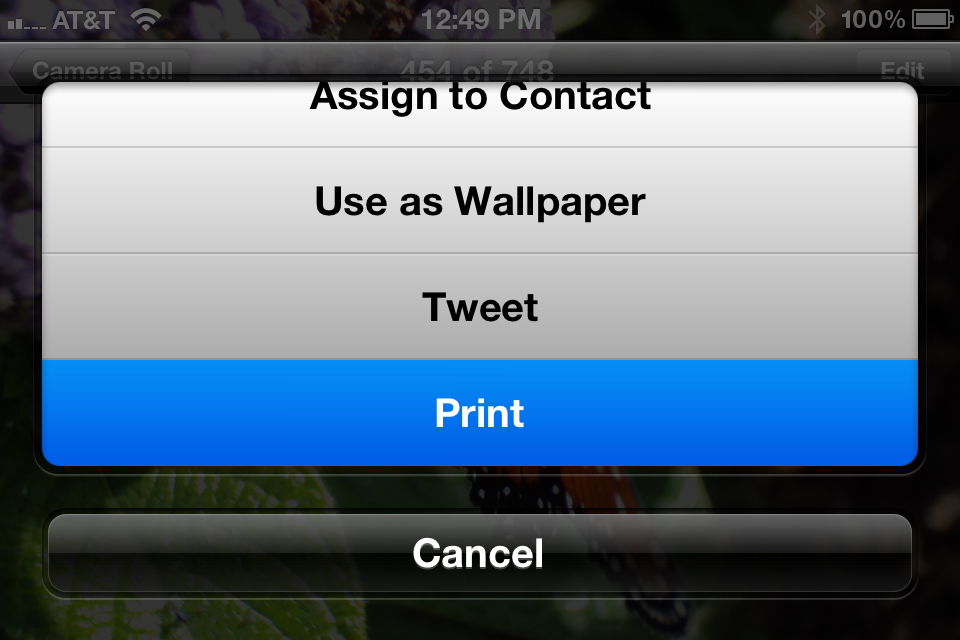
2)
3)
To see the status of your print, you can open Print Center. To open Print Center, double tap the home button. This shows a list of your recently opened apps. If you have already initiated a print, the leftmost icon should say Print Center, as pictured below.
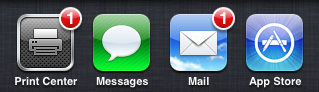 Print Center will only appear if you have pending print jobs in your queue.
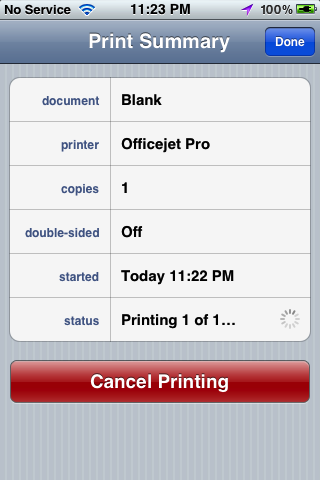
By tapping on the icon for Print Center, you can view information about the print job as well as cancel it.
If you have checked the Apple article referenced back at the top and do not see your printer listed, you won't be able to use AirPrint. However, you will be able to print. An App Store search for "print" will turn up many results, and any of these apps (you can find some as cheap as free or $0.99) should allow you to print to a non-AirPrint capable printer.
| Back: |
Ask: |
Rate:
 |
Share: |
Print: |
Article ID: AE2310
|
Previous Article |
Next Article |
|
AirPort Utility: AirPort Device not Found with |
App Store: Downloading Older Versions of Apps |
Overall User Rating: [NO RATINGS]
