Battery Percentage: iOS and Mac - Apple Club |
Back to: 
Tweet

This article will cover how to enable battery percentage on your iPod touch, iPhone, iPad and Mac, so you will always know exactly how much battery is left on your device. For Apple Watch users, you may be interested in Power Management on the Apple Watch.
Battery Percentage on iPhone or iPad
To enable battery percentage, open the Settings app. Then, tap on the General menu. Tap on "Usage," and then there should be an option for Battery Percentage which may need to be switched to the ON position.

iPod touch owners may be dismayed to find that there is no Battery Percentage option like there is on the iPhone and iPad. However, here is a neat little trick that will let you know exactly how much battery you have left.
Go to Settings, then General, now Accessibility. Tap VoiceOver.
Before you enable VoiceOver, please read the instructions very carefully. There is a screenshot of the instructions below. For more information about VoiceOver, please see: Turning VoiceOver On or Off.
Go to Settings, then General, now Accessibility. Tap VoiceOver.
Before you enable VoiceOver, please read the instructions very carefully. There is a screenshot of the instructions below. For more information about VoiceOver, please see: Turning VoiceOver On or Off.
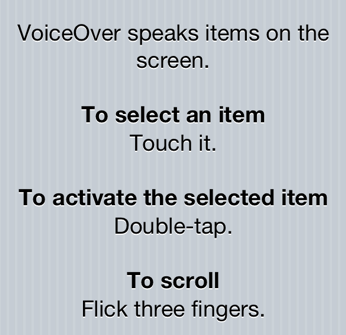
When you are ready, turn VoiceOver ON. You may also want to turn "Speak Hints" OFF to reduce excessive chatter, since that feature is of no use when trying to read battery percentage. Now, tap the battery icon in the upper right and a voice will read you the battery percentage.

If you have the Find my iPhone app, version 2.0 or later, Find my iPhone will also show you the battery percentage (only when the device has 20% or lower charge remaining) when you access it from http://icloud.com/#find or the Find my iPhone app on iOS if you have downloaded it. This works for iPhone, iPad, Mac, and even iPod touch, and allows you to see the battery level without having the device in front of you.
 The battery percentage indicator updates every 1%.
Battery Percentage on Mac
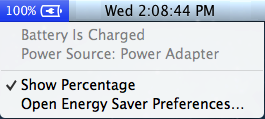
To show battery percentage on the Mac, click on the battery icon in the top menu bar.

There should then be an option called "Show," you should click on this. You can then choose between showing the icon only, the time until the battery is dead, or the battery percentage.
In OS X Mountain Lion (10.8), there is no "Show" menu, just a check mark option called "Show Percentage." Click on the battery icon at the top menu bar and then Show Percentage.
Other Information on Battery Icons


Indicates power Indicates charging Indicates fully charged
source is battery
source is battery
These symbols appear on both the Mac and on an iOS device (iPod touch, iPhone and iPad). If you do not have battery percentage turned on, you will know when your battery is fully charged and is ready to be unplugged when you see the plug icon (right).
Time Remaining on Mac
In versions of OS X prior to 10.8 (Mountain Lion), you can also show the time left until the battery is depleted. This can be done with Lion (10.7) or earlier. To do so, click on the battery icon in the top menu bar and click Show, just as you would for percentage.
and click Show, just as you would for percentage.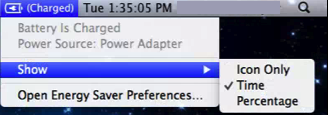
| Back: |
Ask: |
Rate: |
Share: |
Print: |
Article ID: AE2312
|
Previous Article |
Next Article |
|
Basic Troubleshooting Steps for iOS |
Buttons and Hardware on your iOS Device |
Overall User Rating: [3 RATINGS]

Comments (4):
in response to Anonymous35
By just a bloger on 1/14/14 • Reply
how to get your battery percentage enabled usage options to show in
general settings when it's not showed there to options>settings
usage, for itouch 5?
Sent from my iPod
Sent from my iPod
in response to just a bloger
By AppleClubSupport on 1/14/14 • Reply
The iPod touch does not have that option like the iPhone and iPod do, so in order to know what your battery percentage is, you will have to use one of the alternative methods described in this section of this article.