Buttons and Hardware on Your iOS Device - Apple Club |
Back to: 
Tweet

If you are new to the iPad, iPhone, and/or iPod touch, the first place to start is the basics: the buttons. All buttons and their functions, as well as other hardware, are described in this article.
Bottom View
iPhone 5 and Later Pre-iPhone 5
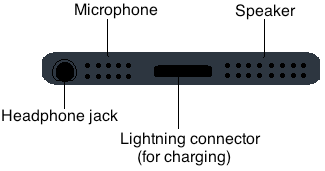
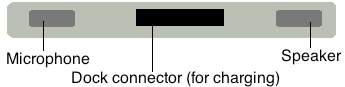
The center port is where you plug in the USB cable that came with the device. Plugging in to the computer with this cable is for charging the device as well as syncing it. To the left of this is the microphone. On the right is the speaker.
Some new users are concerned when no sound is coming out of the left side, but this is normal because the left is actually a microphone. The only speakers are to the right of the dock connector, and above the screen on the front of the device. On the iPod touch, the speaker is on the left, and the headphone jack is not on top, but rather on the bottom to the right of the dock connector.
Some new users are concerned when no sound is coming out of the left side, but this is normal because the left is actually a microphone. The only speakers are to the right of the dock connector, and above the screen on the front of the device. On the iPod touch, the speaker is on the left, and the headphone jack is not on top, but rather on the bottom to the right of the dock connector.
Top View
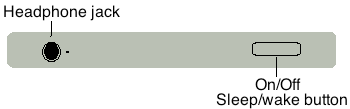
The iPhone 5, iPad mini, and all iPod touch models have the headphone jack located on the bottom. The iPod touch (2nd and 3rd generation) have the power button on the left.
On the left is the headphone jack, where you can insert the headphones that came with your device, and most other brands of headphones work as well. On the right is the power button, also referred to as the sleep/wake button. Pressing this button will shut off the display on your device, but will not shut off the phone itself. You can press the button again to bring the display back up. To power off the device, while the display is on, hold down this button until a red "Slide to power off" slider appears, and then slide the screen.
Side View
Left Side Right Side
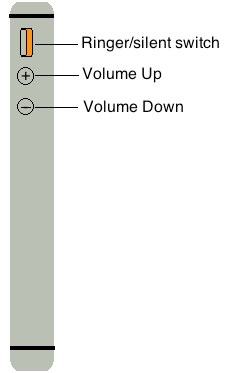
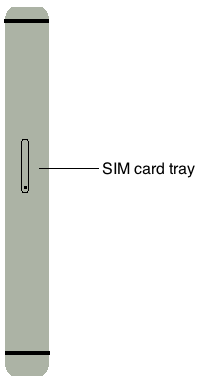
The volume up and down buttons are located on the left on an iPod touch or iPhone, and on the right on an iPad. The silent switch is on the iPhone and iPad. On the iPad, it can also be used to lock the orientation of the screen, which can be configured under Settings; the General menu. You can also configure vibration settings on the iPhone under Settings; the Sounds menu.
When the orange is showing on the silent switch, that means the phone is in silent/vibrate mode. If no orange is showing, and the switch is in the up position, then sounds are on.
Front View
iPhone 4S and Earlier iPhone 5
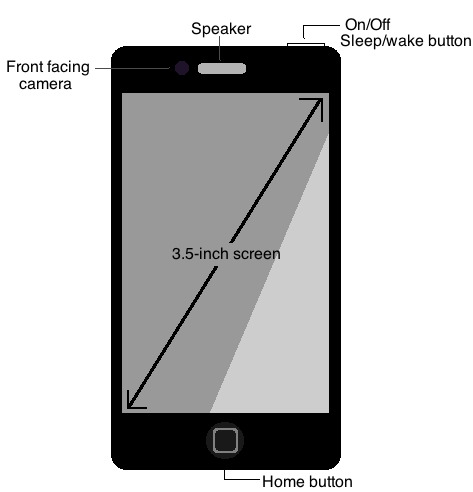
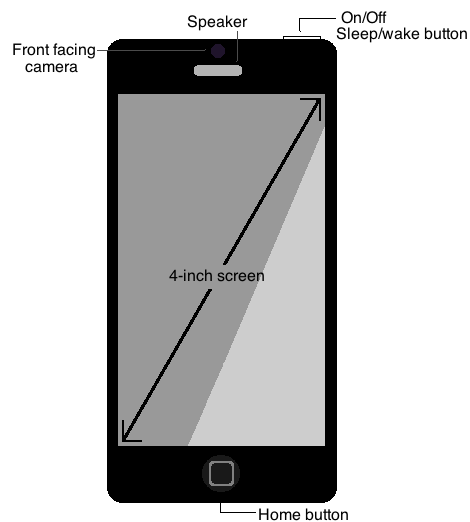
Only the iPhone 4 and later have a front facing camera. Screen sizes shown are iPhone-specific.
The other speaker on the iPhone is located above the screen, next to the front facing camera. On the top of the device, on the right-hand side, is the power button which was covered before. Centered below the screen is the home button. If you are ever in an app, the home button's main function is to return you to the home screen which displays all of your apps. The home button also has other functions, such as:
- Double tap to view your recently opened apps
- Triple click to view accessibility options
- Hold down to access Voice Control / Siri
Back View
Pre-iPhone 5 iPhone 5
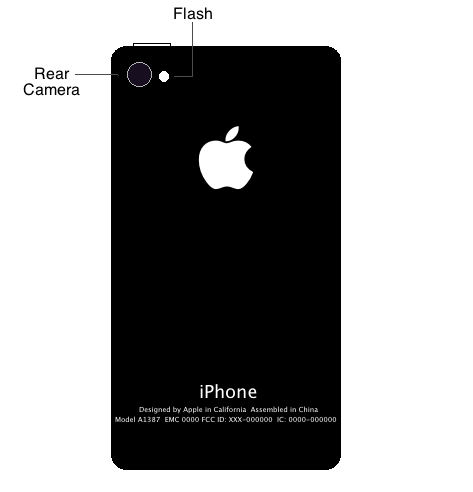
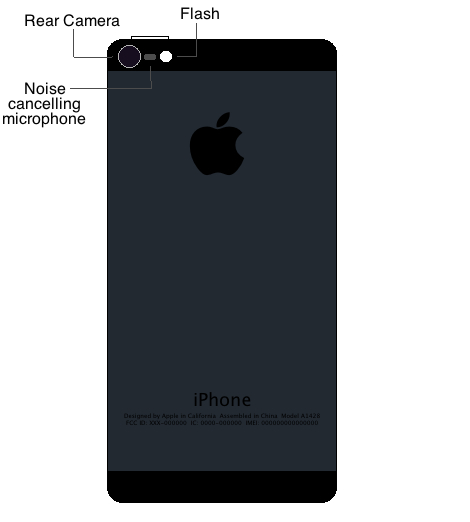
Only the iPhone 4 and later have a camera flash.
On the back is a higher resolution camera, and the camera flash. The iPhone 5 also has a third microphone, which serves as noise cancellation, so when you are on a call, the other person will hear much less background noise. Also, near the bottom, you can find information about your device, such as the model number, and IMEI number (for iPhones and cellular iPads).
| Back: |
Ask: |
Rate: |
Share: |
Print: |
Article ID: AH3210
|
Previous Article |
Next Article |
|
Battery Percentage: iOS and Mac |
Camera Shortcut on the Lock Screen |
Overall User Rating: [NO RATINGS]

Comments (2):
By Marilyn on 10/27/15 • Reply
I am holding the button down and nothing is happening! I have an I pad and know how to shut it down but the mini iPad won't shut down! Nothing shows up to say power off!
If you are having trouble powering off your iPad, then please see: Basic Troubleshooting Steps for iOS.