Closing Apps on iOS - Apple Club |

Tweet

First, you will need to double tap on the home button  . This displays a list of apps you have recently opened. Now, to close these apps, hold your finger down on any of the apps' icons. This should cause them to jiggle, and a red minus sign should appear.
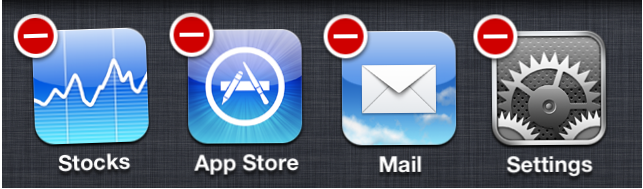
Tap on the red minus sign, and this will officially close the app. It will not delete the app, just close it. Closing apps can help reduce your device's CPU usage, as well as preserve battery life (if your apps are capable of multitasking). If your device is freezing or apps are constantly crashing, it could be because too many apps are open. If one particular app is frozen, closing it as above may solve the issue.
In iOS 7, you can double tap the home button as usual, and then a list of your open apps will appear. Each app will have a preview of the screen that the app was left in. Swipe up on this preview image to close the app.
To exit the app switcher, press the home button. On an iPhone X or other model without a physical home button, tap somewhere outside of the app preview screens, such as in the upper left or right corner.
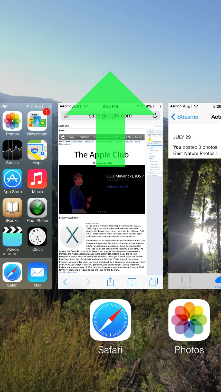
Closing apps in iOS 7 is more important because all apps are capable of multitasking, which may have an impact on battery life. You can turn off multitasking under Settings > General > Background App Refresh.
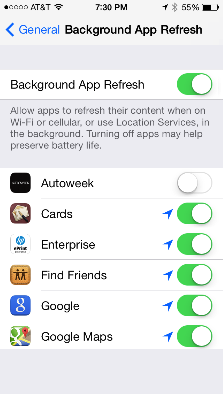
You can turn it off altogether, or choose individual apps that you do not want to run in the background.
For an iPhone X running iOS 11, there is an extra step. If it's running iOS 12 or later, the procedure is the same for any device running iOS 7 or later as described above (click to expand the "Closing Apps on iOS 7 or Later" section above for more details).
If your iPhone X is running iOS 11, first call up the app switcher interface by swiping up from the bottom of the screen and holding your finger down for two seconds. It will show you the screen that each of your running apps left off with. However, you cannot just swipe up on the screen of the app that you want to close just yet. You must first hold your finger down on one of these preview screens until you see a red minus sign appear in the upper left corner of each screen, as shown below.
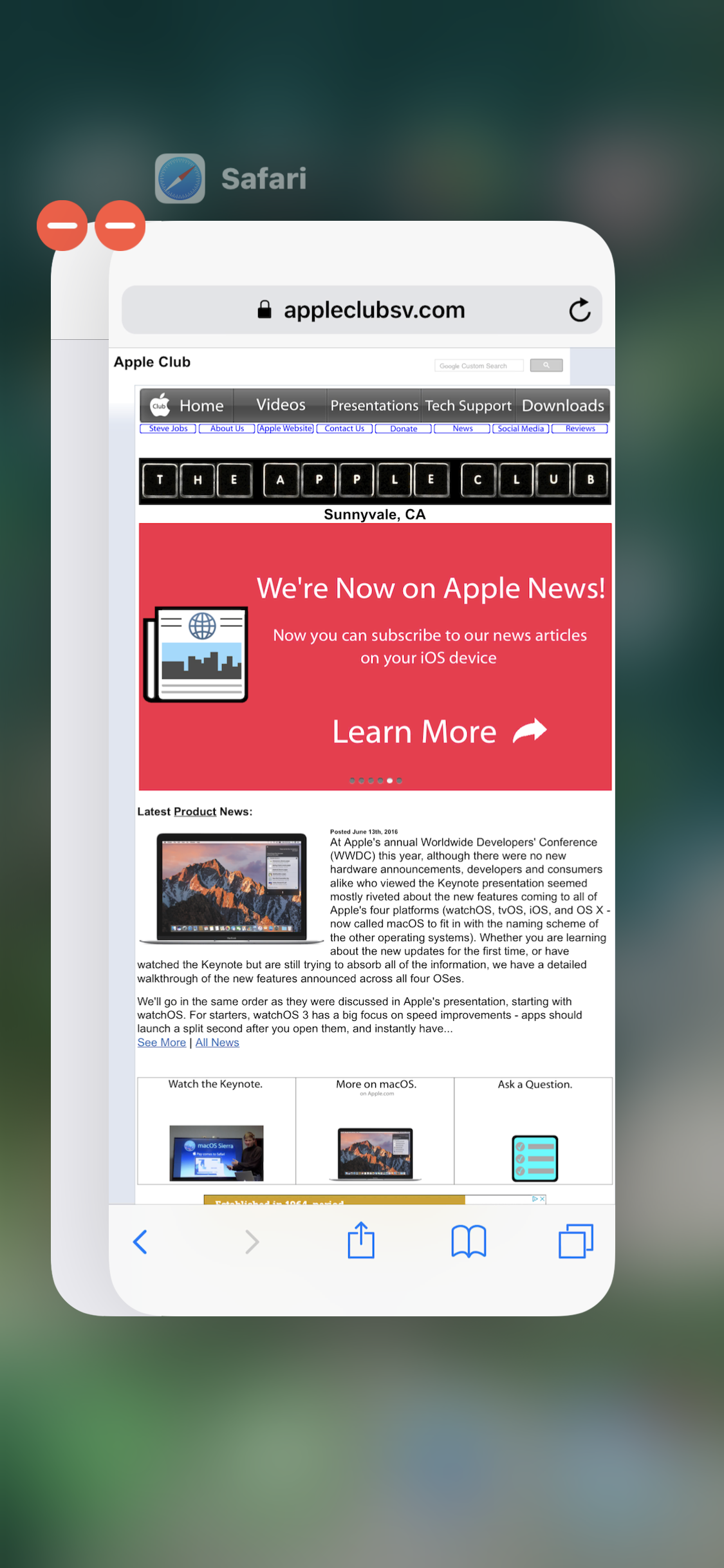
After that, you can either swipe upward on the app that you want to close, or tap on the red minus sign. To exit the app switcher, tap somewhere outside of the app preview screens, such as in the upper left or right corner.
Force Quit Apps
If an application freezes or is not responding, you can force the app to close. To do so, hold the power button until the red slider "Slide to Power Off" appears. DO NOT slide the slider. Instead, hold the home button for 5 or 6 seconds, and you should be returned to the home screen.
| Back: |
Ask: |
Rate:
 |
Share: |
Print: |
|
Previous Article |
Next Article |
|
Charging Your iOS Device |
Contact Names Changed to "False False" |
|
|
Related Articles |
Related Questions |
|
Basic Troubleshooting Steps for iOS |
No related questions found |
|
Problems with Opening or Downloading Apps |
Thanks, that helped me!
