Migrating from Android to iOS - Apple Club |
Back to: 
Tweet

If you are planning to switch from Android to iOS, congratulations. This article will guide you through the process of transferring your data from your Android device to your iOS device. Note that no data should be lost on your Android device during this procedure (it is more like a copy as opposed to a transfer).
Preparation
First, make sure your devices meet the requirements.
For Android:
- Android 4.0 or later
For iOS:
- iOS 9.0 or later
- iPhone 5 or later, iPad (4th generation) or later, iPad mini (2nd generation) or later, any iPad Air or iPad Pro, iPod touch (6th generation)
- Equal or greater free storage space on your iOS device compared to the used storage on your Android device
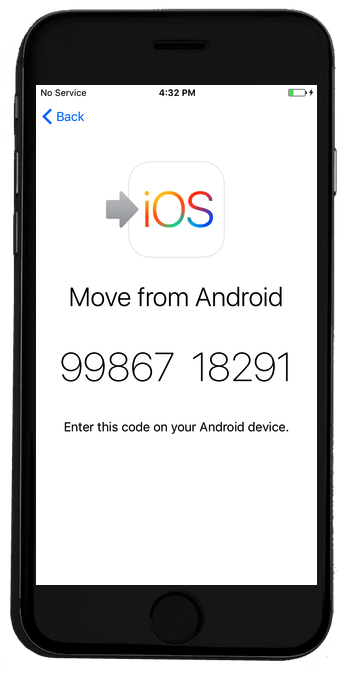
On your Android device, download the Move to iOS app from the Google Play store. See this page on Apple's website to learn more. When you are ready, proceed with the setup on your iOS device until you see the below screen. Tap on "Move Data from Android."

Step 1
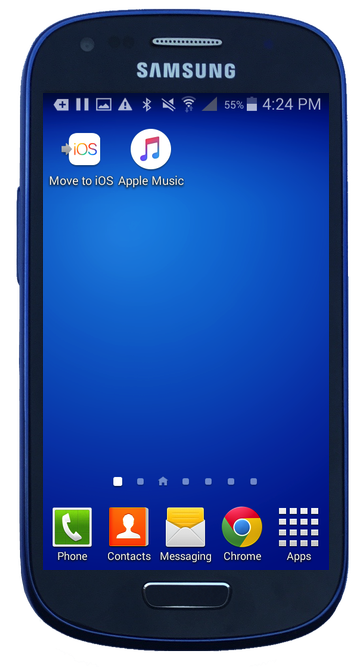
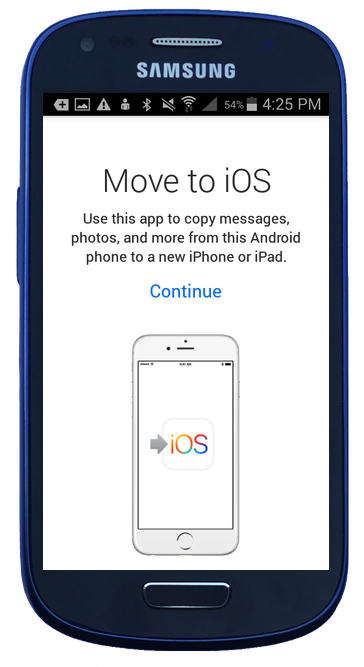
Tap on "Continue" on your iOS device. On your Android device, open the Move to iOS app. If you did not add the app to a home screen, check in the "Apps" folder on your Android device. Tap "Continue" in the Android version of the app.

Step 2
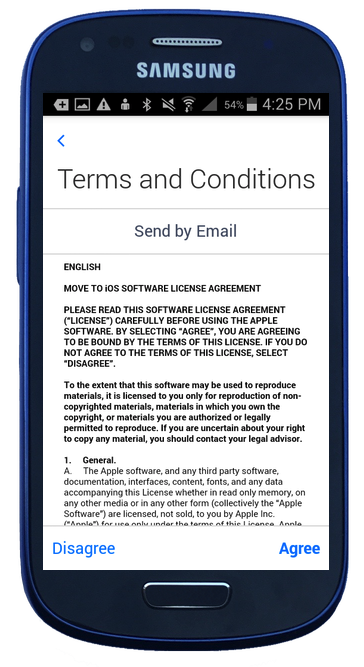
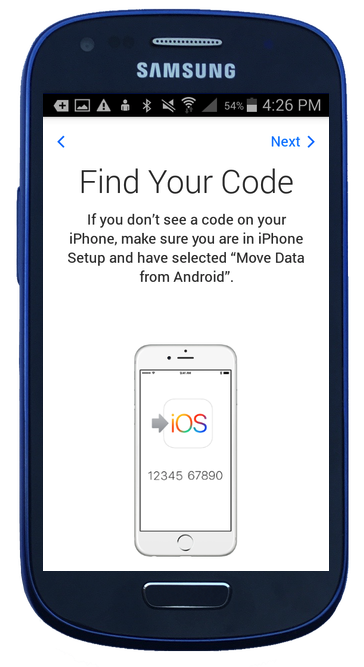
On your Android device, read and agree to the Terms and Conditions for the Move to iOS app by tapping "Agree." Then tap "Next" on the screen that follows.
Step 3
The app on your Android device should ask you for the 10-digit code that your iPhone should be displaying. Enter this code on the Android device.
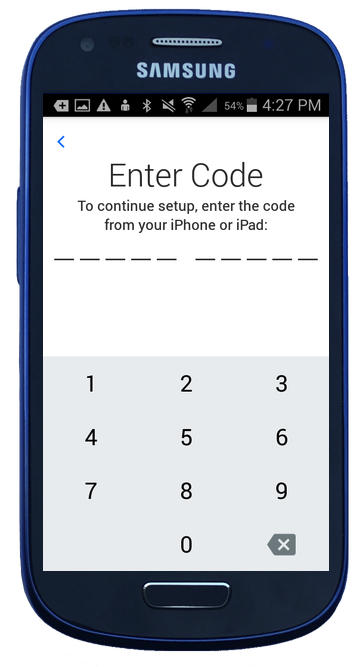
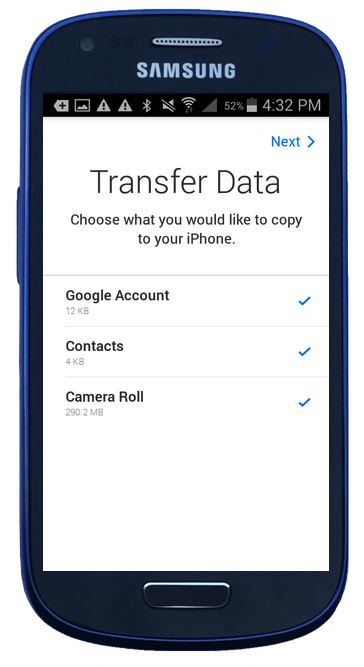
On your Android device, you will be asked to choose which data you would like transferred to your iOS device. Tap on any item in this menu to select or deselect it. When you are done, tap "Next."
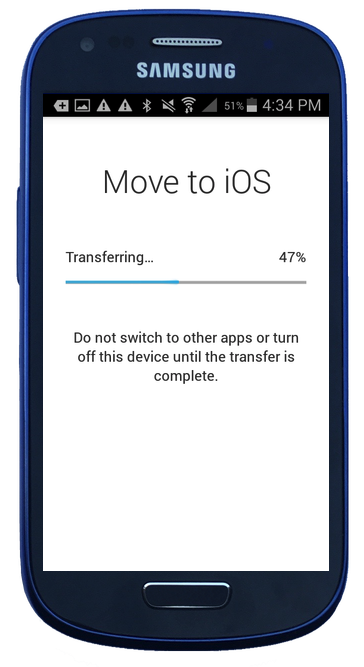
Wait while the transfer takes place. The Android version will show the percentage of the process that has been completed.
Other Steps

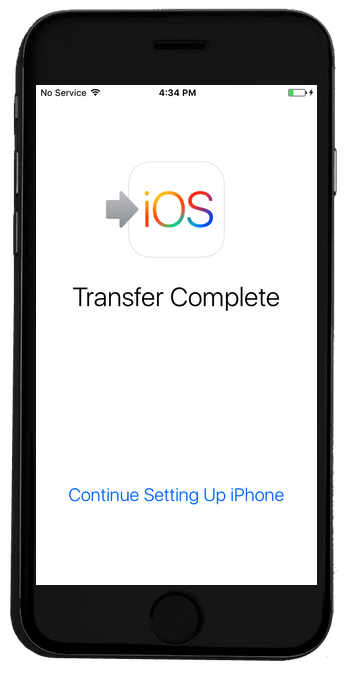
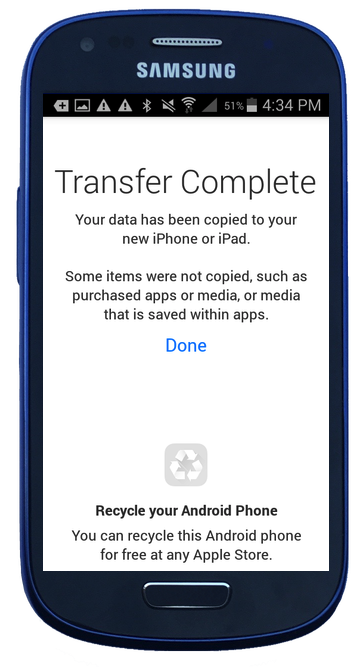
You are officially done with the data transfer after the above steps, but if there is some data that did not transfer, you can follow the procedure in this Apple article. Additionally, if there are some apps that you had on your Android device that do not also have an iOS version, you can search the App Store for alternatives once the setup of your iOS device is complete.
If you do decide to recycle your Android phone as mentioned on the last screen in the app, learn more about Apple's recycling program.
| Back: |
Ask: |
Rate:
 |
Share: |
Print: |
Article ID: AS6055
|
Previous Article |
Next Article |
|
Mail for iOS: Printing an Email Message |
Mountain Lion: Exploring New Features |
Overall User Rating: [NO RATINGS]
