What is Stored in iCloud and What is Not? - Apple Club |
Back to: 
Tweet

Some iCloud users think that certain content is stored in the cloud, when in reality, it is just synced from the cloud. Some users also think that when they are told there is not enough storage to download an app or a software update, for example, they need to buy more iCloud storage to make room. This is not the case, and this article will elaborate on iCloud storage vs. device storage.

Device Storage and iCloud Storage
Your iPod's, iPhone's or iPad's solid state drive is typically either 8GB, 16GB, 32GB, 64GB, or 128GB (iPad only) in size. The operating system takes up around 2GB (give or take), so if you had a 16GB iPhone you would have ~14GB space available to download content.
iCloud storage is mainly used for making backups of your iOS device, as well as storing documents you elect to save in iCloud, and iCloud mail (also MobileMe or .Mac, iCloud's predecessors). You get 5GB of storage for free, and can purchase more under Settings > iCloud > Storage & Backup > Change Storage Plan.
What is iCloud Used for?
iCloud's main use is not for storage, but rather for syncing. For example, when you take a photo on one device, it is automatically downloaded to your others devices via the Photo Stream feature of iCloud. When you download an app on one device, it is ready to download on your other devices, or it can even download automatically if you turn on Settings > iTunes & App Stores > Automatic Downloads > Apps.
 This icon may appear next to an app ready to be downloaded to your device
This icon may appear next to an app ready to be downloaded to your deviceAs mentioned above, the only "storage" really going on in iCloud is for backups of your entire iOS device (you generally cannot access specific data from a backup). For a full guide on the usage of iCloud, see: iCloud Guide.
What is Device Storage Used for?
Nearly all media you download is downloaded locally, on your device, and not in the cloud. Whenever you download an app, song, movie, podcast, etc., or take a photo or video, all of that takes up some of the storage on your device, not in iCloud.
If you do not have enough room to buy iTunes content, take a picture, or something else along those lines, upgrading iCloud storage will not help. If you are told there is not enough storage, you will need to delete some other content to make room. Movies and certain apps usually consume the most space. If you delete such iTunes content, it can be redownloaded at no additional cost if you free up more storage later. If you want to delete pictures or videos, sync them to a computer and then delete them from the iOS device. This will ensure that a copy is still retained on your computer while freeing up space on your iOS device.
If you are told you do not have enough storage to download an iOS software update wirelessly (over the air), then you can update using iTunes on your computer to get around this.
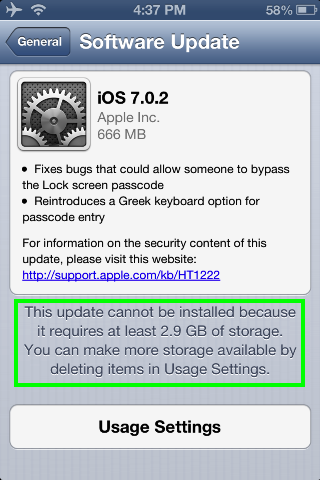
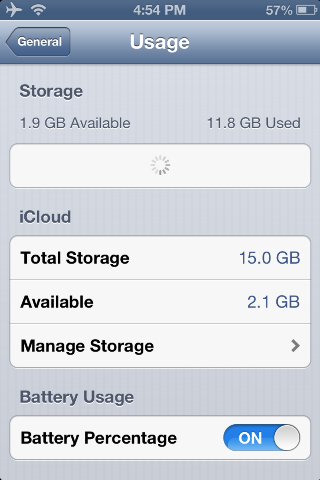 Software updates also use the device's storage. If you get a message stating you do not have enough storage, follow the button to Usage Settings. When people see the screen on the right above, this is the point where some get confused . After having received the message that they do not have enough storage to download something, they are then taken to a screen which includes a menu for "Manage Storage" under the "iCloud" header. However, the message is actually referring to the content under the "Storage" header, which can sometimes take a few seconds to load, as shown above. If users see the iCloud Storage menu and the other section has not finished loading, that seems to be the source of the confusion.
Once the "Storage" section finishes loading, you will see a list of all apps ordered from the ones taking up the most space to the ones taking up the least space. If it is an app downloaded from the App Store, tapping on its menu will take you to a screen where you are given a breakdown on the types of content that comprise the space being used up by that app, and are also presented with a Delete App button. If it is a built-in app (originally included with your device), tapping on its menu will give you the same breakdown, however you can swipe horizontally on any of these listings, and a red Delete button will appear which will delete only that content, and not the app (built-in apps cannot be deleted).
Oops! I Already Purchased iCloud Storage. Can I get a Refund?
If you purchased iCloud storage on accident, Apple says that you can contact them within 15 days of an upgrade, or 45 days of an annual renewal to get a refund. To do so, give them a call at their main number: 1-800-MY-APPLE.
If you want to downgrade the storage plan for the next time it is up for renewal, go to Settings > iCloud > Storage (called "Storage & Backup" in versions prior to iOS 8) > Change Storage Plan > Downgrade Options, enter your Apple ID's password, and choose an option.
If you feel that any procedures mentioned here are confusing, you can leave Apple feedback at http://apple.com/feedback/icloud.html.
| Back: |
Ask: |
Rate:
 |
Share: |
Print: |
Article ID: AE2326
|
Previous Article |
Next Article |
|
What is Jailbreaking iOS? Should I do it? |
What is System Integrity Protection? |
|
|
Related Articles |
Related Questions |
|
iCloud Guide |
No related questions found |
Overall User Rating: [2 RATINGS]