Xcode: Resource Fork, Finder Information Not Allowed Error - Apple Club |
Back to: 
Tweet

Sometimes, when trying to archive a project in Xcode, you may get a codesign error stating: "resource fork, Finder information, or similar detritus not allowed." This issue only affects users running macOS Sierra (10.12) or later. This article explains how to avoid this issue.

The issue relates to storing your Desktop and Documents folder in iCloud Drive. Technically, files in these folders are not stored in /Users/yourname/Desktop, but rather iCloud Drive/Desktop. Thus, an extra attribute is added to the file to let macOS know it's in iCloud. This causes Xcode's codesign protocol to fail when compiling your app. There is a two-step process to get around the issue.
Move the File
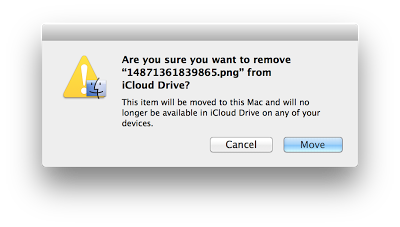
The first step is to simply move or copy the file from your Desktop or Documents folder to another folder; the best is probably moving it to the folder dedicated for the project's workspace. You may see a warning like the following:
Remove the Attributes
The issue is not merely that the file was stored in iCloud Drive, but that the attribute is created to reflect that. The file will still have the attribute even if you move the file out of iCloud Drive and into your workspace. You can remove the attributes using Terminal. Open Terminal either from Spotlight Search, or from the /Applications/Utilities folder. Type xattr -rc (with a space after the 'rc'). Now, either type out the file path, or drag the file into the Terminal window. If you are not familiar or comfortable with Terminal, there are a few things to keep in mind.
- The ~ sign represents your user folder. /Users/yourname/Downloads is the same as ~/Downloads
- If the file name contains spaces, be sure to either surround the file name with single quotes, or include a \ before each space to escape the space character. Otherwise, Terminal will think the text after the space is part of the next parameter. If you drag the file to the Terminal window, the quotes will be added automatically
- You can quickly copy a file path to your clipboard by clicking on the file, then pressing Command ⌘ + option + C, or right clicking, holding the option key, and selecting "Copy [file] as Pathname." Be sure to keep in mind that you should add the quotes when pasting this into Terminal
After you have the full command pasted in Terminal (it should say xattr -rc /path/to/file), press the return key to execute the command. After you do that, then try to archive or run your project again in Xcode.
If you are not sure which files in your workspace, you can also remove attribute for all files in the directory. In Terminal, type cd /path/to/folder; xattr -rc . (including the '.' at the end). Replace "/path/to/folder" with the file path for your workspace folder.
If the Error Message Persists
In some instances, the error message may continue to appear after doing the above steps. In this case, you may also need to remove the attributes for the intermediate archive copy of your app. In order to find the file path, check the error tab in Xcode. It is in the navigator sidebar on the left, as shown below.
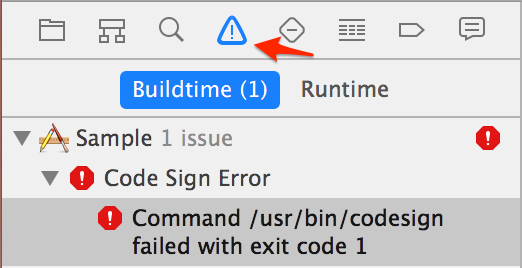
Once here, click on the error message. At the bottom of the error log, right before the "resource fork..." error message, it should state the path to the app. The path should look something like this: /Users/yourname/Library/Developer/Xcode/DerivedData/Sample-xxxxxxxxxxxxxxxxxxxxxxxxxxx/Build/Intermediates/ArchiveIntermediates/Sample/
InstallationBuildProductsLocation/Applications/Sample.app, where each 'x' is a random character.
Copy this file path to the clipboard. Now, in Xcode, type xattr -rc /path/to/archive.app, and do not forget the quotes, if applicable. You can just use the path for the .app file directly, not for any of its contents. After this, you can try archiving again. If it still does not work, make sure there is enough free storage on your Mac. Also try restarting Xcode, or restarting your Mac.
| Back: |
Ask: |
Rate:
 |
Share: |
Print: |
Article ID: AD2101
Overall User Rating: [NO RATINGS]
