Avoiding Phishing Scams - Apple Club |
Back to: 
Tweet

This article will explain what phishing scams are, common phishing tactics, and how users can avoid them. A general rule would be to research any message you receive before taking action on it if you have the slightest suspicion that it might be a scam.
Background
Phishing scams are scam messages where the scammers try to obtain your personal information by tricking you into entering it on a webpage. More often than not, these scammers will claim to be a legitimate company, and they design emails and webpages that closely mimic those of the company they are impersonating. Phishing scams can come in many forms, including emails, text messages, pop-ups in your web browser, or even phone calls. Most of the time, phishing scams will threaten some action against your account or create a sense of urgency if you do not comply.
Phishing Tactics
Email
Email phishing scams are one of the most common. A typical phishing email will usually have a message claiming to be from Apple, Microsoft, AT&T, Verizon, your bank, or some other organization that you have an account with. It will say something along the lines of "your account has been disabled," "you need to change your password," or "fraud was detected on your account." There will be a link in the email which links to a site run by the scammers. It will likely either download malware, or present you with a page resembling the legitimate organization, which will then ask you to input your login and current password.
Text
Although these are less common, some scammers will communicate by text message. They will usually have a message similar to the examples listed for phishing emails above. One of the more popular text message scams targets iOS users who have recently had their iPhone stolen. The thieves are brazen enough to text the iPhone owner, and send a message that claims to be from Apple saying that their iPhone has been found, and they need to log in to see its location. The thieves are trying to get your Apple ID password so that they can disable the "Activation Lock" anti-theft measure that Apple put in place, which requires that any device running iOS 7 or later must be signed in to the owner's iCloud account before it can be restored or activated.
Browser Pop-ups
A common scam is a pop-up in your browser that claims that the FBI has seized your computer, or that a virus or "suspicious activity" was detected on your computer. These pop-ups will not go away when you click either "OK" or "Cancel," as an identical pop-up will take its place infinitely. The pop-up will present a toll-free number to call to "fix" your computer or release the "government lock." Sometimes, the pop-up might also say "you are the lucky winner" or "you won a prize." All of these pop-ups affect both Mac and iPhone, and other platforms as well. The pop-ups themselves are not viruses or any type of malware, just a script on a malicious webpage.
How to Avoid These Scams
Check the Email Header and Content
First, check who the email came from by checking the "From" field in your email client. If the email is legitimate, the domain (after the "@") should be the company's official domain. For example, Apple emails will come from an @apple.com address. There are a few exceptions, such as @inside.icloud.com. Emails from an @icloud.com address can be tricky, because Apple allows the public to register for an @icloud.com email address, however Apple themselves use some too, such as noreply@icloud.com. If you cannot determine if the email is a phishing scam based on the sender, check the body of the email. Apple emails will always begin by addressing you by name, so if you see an email that starts with "Dear Valued Customer," that is a scam if it is supposed to be from Apple. Some legitimate companies may address you like this in emails, so the next thing to look for is how well the email is written. If there are several spelling and grammar errors, it is unlikely that such an email from a major corporation would be sent out without being proofread first, so it is likely a scam. NOTE: Even if the email appears to come from a legitimate address, it may not have. Although this is rare, some scammers "spoof" the sender address to look like a legitimate email address.
As an example, there was an email claiming to be from "no_reply@email.apple.com" with the subject "unlock it now before you lose it." The email is a legitimate address, coming from the apple.com domain (learn more about domains below). However, the email was not actually sent by this address, despite the appearance to the contrary. In situations like this, you must rely on other clues in the message. For example, notice the informal language in the subject line, the bad grammar, and the threat that you will lose your account. More often than not, if the email comes from an address that you know is legitimate, the email itself is legitimate and really did come from that address. However, if the wording in the email makes you suspicious, always contact the company the email claims to be from to determine if it is legitimate.
Check any Links in the Message
Links in a scam message will not take you to the website of the company that the scam message claims to be from. Instead, it will redirect you to their own site, oftentimes set up to mimic the look of the official company's website, and display a page asking for payment, or personal information. If you have any doubt, rather than directly clicking the link in the message, type the real company's website into the URL address bar in your browser, and search their site for information.
You may instead want to determine if the link actually is legitimate. You can mouse over the text of the link without actually clicking on it, and the webpage that the link points to should appear in the status bar at the bottom of your browser window. If you are using Safari, in your Mac's menu bar, go to View > Show Status Bar if you do not see the status bar at the bottom. Other browsers have similar menus. If the website clearly does not belong to the company that it claims to be from, it is a scam. However, sometimes the URLs can be tricky. Now, let's look at the different components of a URL. Here is a sample:
www.apple.com-security.alert/popup
The scammers want you to read this as "apple.com security alert" and think it is from Apple. However, this is a deception. Here is a breakdown of the URL components:
www. - you are probably familiar with this. It stands for "world wide web," and precedes every URL, though it is not necessary.
com-security.alert - this is the domain. It is the text leading up to the last "." The text following that is the domain type, usually ".com," ".org," or ".net," but it can be many other types as well. In this case, it is ".alert."
apple. - this is a subdomain. If there are any ".s" in between the "www." and the domain, these are subdomains. There can be multiple subdomains.
/popup - anything following a "/" is a subpage. When the webpage (URL) contains only the domain, with no subpages, that is the home page of the website.
Look at another URL: appleid.apple.com
The domain is apple.com, so it is Apple's real site. "appleid" is the subdomain in this case. The bottom line is that it is important to distinguish between "." and "-" and "/" in URLs to determine if a website is really from the company that it claims to be.
The same also applies to emails as far as domains and subdomains. For example, if it is an @inside.icloud.com address, "inside" is the subdomain and "icloud" is the domain.
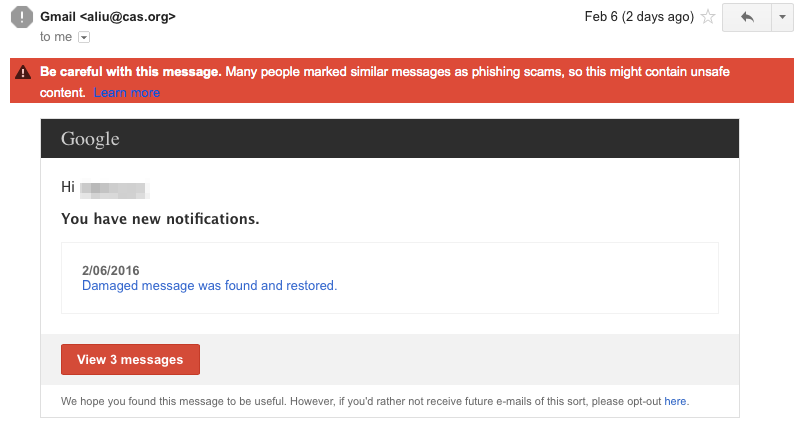
Here is an example phishing email claiming to be from Gmail. In this case, the real Gmail's spam filters caught it, but if they hadn't, you should still be able to tell that this is a phishing scam. Notice that is came from an "@cas.org" email address, and that is an email domain that has no affiliation with Google.
Dismiss Any Browser Pop-ups
Very few legitimate websites will relay important information to you by communicating through pop-ups in your web browser. Furthermore, no website has access to your computer's file system, and thus does not have the ability to determine if you have a virus. The government also does not communicate with you through pop-ups. Any such message saying you have a virus or claiming to be from the FBI will be a scam.
Getting rid of the pop-ups is another matter. To get rid of them, see: A Browser Pop-up Scam has Taken Over Safari.
Report Phishing Scams
You can report these scams to Apple, your carrier, or email provider depending on how you received the message. This helps them block the scammers from sending more scams. To learn how to contact the appropriate party, see: Dealing with Spam Email, iMessage, SMS or Phone Calls.
Consequences
This section will cover what to do if you fell for a phishing scam. If you gave out your bank details, or paid money to scammers to remove a "virus," contact your bank immediately. They can reverse any fraudulent charges, and they may need to freeze your account. You should also change your bank login password. If scammers have access to your password for another account, change that password. To change an Apple ID password, go to http://appleid.apple.com. If they changed your password, you will need to call Apple at 1-800-MY-APPLE, and ask to speak to the account security team. Going forward, you may want to enable two-step verification for your Apple ID so that no one can access your account without physical access to one of your devices.
To summarize, if you find an email suspicious, check out the URL that it points to. When in doubt, always research a message before responding to it to see if others have encountered a similar message, or if it is a known scam. It is good to use caution, but also remember that not all emails stating that action is required for your account are malicious - they may actually be from the company they claim to be from. The trick is distinguishing legitimate emails from phishing scams, and this article should properly equip you to do so.
| Back: |
Ask: |
Rate:
 |
Share: |
Print: |
Article ID: AE2336
|
Previous Article |
Next Article |
|
Audio Disabled after Upgrading to Yosemite |
Basic Troubleshooting Steps for iOS |
|
|
Related Articles |
Related Questions |
|
A Browser Pop-up Scam has Taken Over Safari |
No related questions found |
|
Dealing with Spam Email, iMessage, SMS or Phone Calls |
Overall User Rating: [NO RATINGS]
